Settings
公開更新
Settings, under Administration, has two tabs. General holds what the tenant decides about its own site. Limits and retention holds the values the operator sets for every tenant, which a tenant may change within bounds.
Each card on these tabs has its own save button and saves only its own fields, so save one card before you move on to the next. Every member of the staff can open Settings, but only a Tenant admin can save it. An Editor or an Auditor sees each card with "Only a tenant administrator can change this setting. You have read-only access."

General
Public site display
Three pieces of copy, each of which may be left empty:
- Copyright notice: shown at the foot of every page of the site, and of its sign-in screens.
- Site tagline: a short line shown on the sign-in, sign-up, and password screens.
- Site description: shown in the site's footer, and given to search engines and link previews as the site's description.
Save the settings saves all three.

Time zone
Time zone is the zone every date and time is shown and entered in, both in the console and on the public site. A publication time entered on a series or an episode is read in it, and so is the time a banner stops, and the days the reports and the audit log are counted by. It also decides where one month's sales end and the next month's begin for royalties, and the calendar day a reader's age is counted on. Type a city or a region to narrow the list, and choose Save the time zone.

Set it before the first sales: changing it later moves where the open month is cut, while a month already closed for royalties keeps the time zone it was cut in.
A new tenant starts on the platform's default time zone, which is UTC unless the operator chose another.
Default language
Default language is the language the site and this console start in for someone who has not chosen one. It is offered in 日本語, English, 한국어, 简体中文, and 繁體中文. A reader or a member of staff who has already chosen a language keeps it.
The default language is also:
- the language of the mail the tenant sends, invitations to new staff included;
- the language a new page is first written in.
The operator chose it when creating the tenant. Save the default language changes it.

Reader comments
How comments are published decides whether readers can comment on episodes, and when others see a comment:
| Choice | What it does |
|---|---|
| Do not accept comments | Episode pages show no comment section, and no comment can be posted. A new tenant starts here |
| Publish straight away | A comment is readable by everyone from the moment it is posted |
| Publish after approval | Only its commenter sees a comment until a moderator approves it under Comments, as Working the approval queue describes |
Reports that remove a comment is how many different readers must report a comment before it is hidden without waiting for staff. A hidden comment waits in the report queue under Comments, its commenter still sees it, and staff can put it back. It starts at 3; 0 leaves every removal to your moderators.
A series can set its own Comments choice on its form, which then applies to that series instead of this one. A series left on Follow the tenant setting follows any later change here. Choose Save the comment settings to save.

Age verification
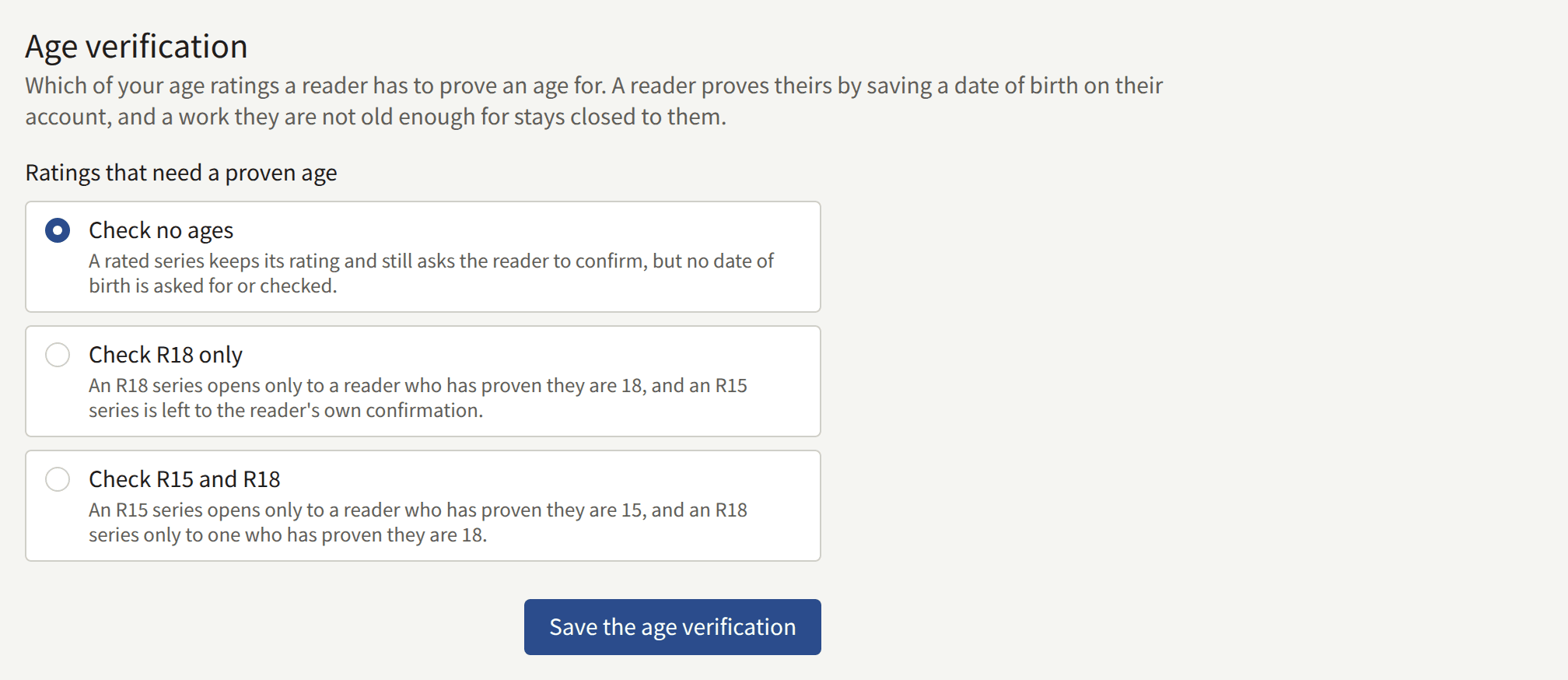
Every series has an Age rating: All ages, R15, or R18. Ratings that need a proven age decides how strictly the site holds a reader to it:
| Choice | R15 series | R18 series |
|---|---|---|
| Check no ages | The reader confirms they are 15 or older | The reader confirms they are 18 or older |
| Check R18 only | The reader confirms they are 15 or older | Open only to a reader whose date of birth shows they are 18 or older |
| Check R15 and R18 | Open only to a reader whose date of birth shows they are 15 or older | Open only to a reader whose date of birth shows they are 18 or older |
A new tenant starts on Check no ages. A series rated All ages is never gated.
To "confirm", a reader presses I am 15 or older or I am 18 or older, and the browser remembers it for the site. To "prove" an age, a reader signs in and has a date of birth saved on their account. A reader can give it when signing up or later in their settings, and cannot change it once it is saved. A reader without a date of birth is offered Add your date of birth, and one who is too young is told the work is not available for their age. A reader whose date of birth was entered wrongly contacts the site, and a Tenant admin corrects it from the reader's page under Readers.
Choose Save the age verification to save.
Terms and privacy policy
Terms of service and Privacy policy each name one of the tenant's published pages. The site and the app link to them, and a reader agrees to them when creating an account. Write and publish the pages first, as Pages describes, then choose them here and choose Save the terms and privacy policy. None leaves either one unset.

If a page chosen here is later taken off the site, the card says that nothing links to it any more, and sign-up stops asking readers to agree to it. Publish it again, or choose another page.
Refused email addresses
Addresses that readers cannot sign up with or change their email address to. A reader who tries one is told "This site does not accept this email address. Use another email address."
- Refuse disposable email domains refuses the domains of throwaway mail services, from a list the platform keeps. If the operator has set no list, the switch says it has no effect.
- Addresses and domains to refuse takes one entry per field, up to 1000. An entry with
@is one address, and also refuses that address with a+tagadded. Any other entry is a domain, such asexample.net, and also refuses its subdomains. Pasting several lines into a field adds a field for each line. There are no wildcards.
Choose Save the refused email addresses to save. The list applies to the next sign-up or address change. Readers already signed up with a refused address keep their accounts.

Sign-in with Apple or Google is never refused here, since the provider supplies the address. Only a Tenant admin can see this card's contents.
Limits and retention
Limits and retention holds two forms:
- Community limits: how often one reader may post or report comments, rate episodes, write through the contact form, and save their viewer's layout, and how long a reader is refused when posting the same comment again.
- Retention periods: how long withdrawn comments, content events, and daily and weekly ranking snapshots are kept before they are deleted.
Each group on these forms starts with Use the platform default ticked, and shows the operator's value beside it. A tenant on the default follows the operator's later changes. To set the tenant's own value, clear the box, enter the value, and save the form with Save the community limits or Save the retention periods. To return to the platform's value, tick the box again and save.


- A community limit can only be made stricter than the platform's: a lower count, or a longer duplicate comment window. A looser value is refused with a message that names the setting. If the operator later tightens the platform's limit below the tenant's, the platform's applies.
- A retention period can be longer or shorter than the platform's default, from 1 to 36500 days. Content events start at 30 days instead, and a shorter period is refused: the site's recommendations are built from the last 28 whole days of them.
If someone else saved the same form after you opened it, your save is refused with "These settings were changed elsewhere while this page was open. Reload the page and enter the change again."
What each limit and record is, and what each purge leaves in place, is explained from the operator's side in Platform defaults and policies. Saves on this tab are recorded in the audit log as Community limits updated and Retention periods updated.