Series
公開更新
A series is the work a reader follows: it has a title, a synopsis, a cover, a label, and its Authors, and it holds the episodes readers open. Series, in the sidebar's Catalog group, lists the tenant's series, newest first, twenty to a page. Serialization status and Age rating above the list narrow it.
Each row opens the series with Edit, or View for an Auditor, and its episodes with Episodes. A row's Status is Published once the series' Publication date and time has passed, Scheduled while that time is still ahead, and Draft without one. A series not shown on both the site and the app carries Web only or App only beside its title.

Creating a series
Choose Create series. The form is the same one the series is edited with later, and every field on it can be changed afterwards. Choose Create series at the bottom to save it, which opens its edit page.
The title and synopsis are written in the site's default language. A title and synopsis in the site's other languages are added once the series exists, as Titles in other languages describes.
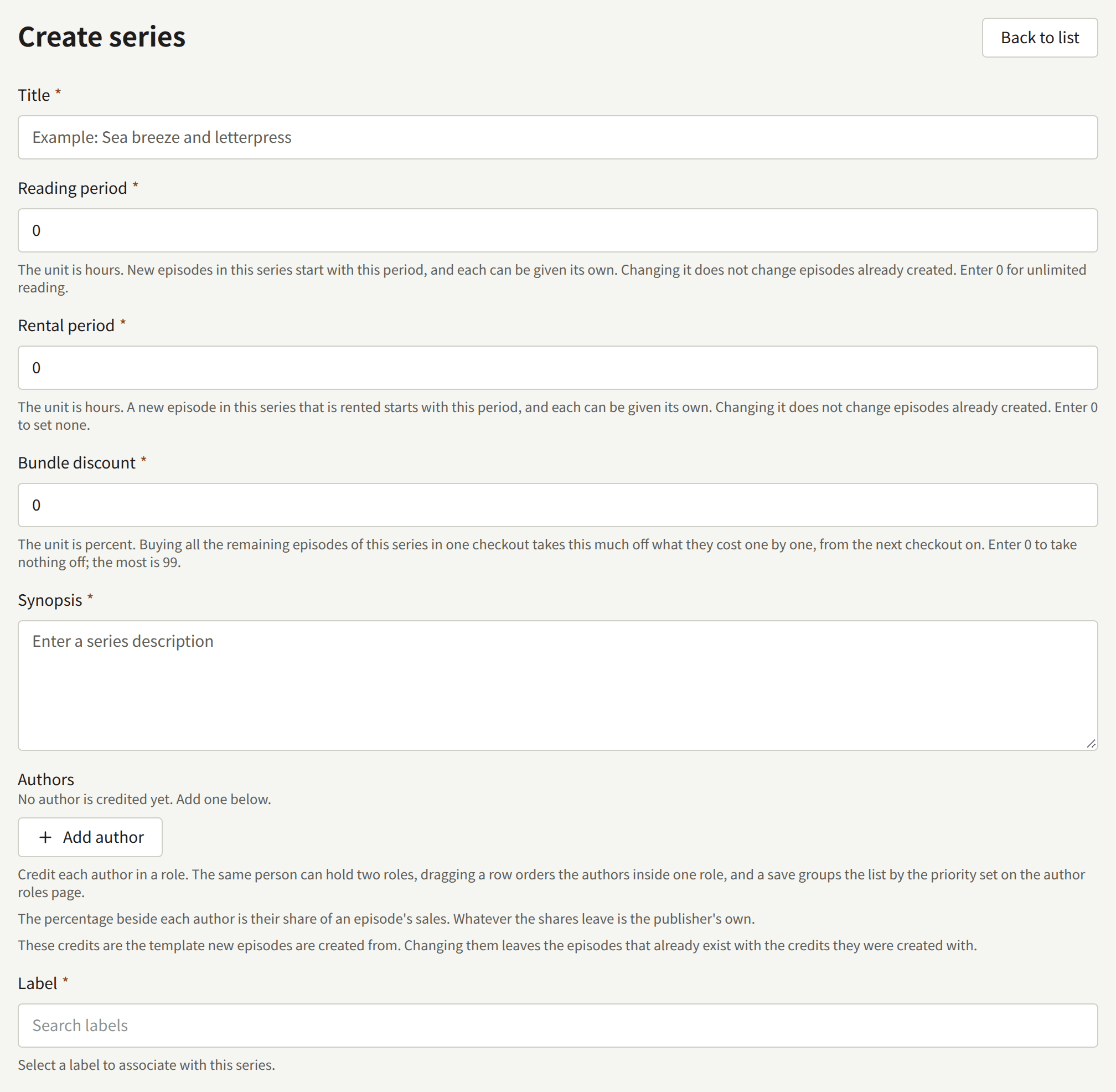
What readers see first
- Title: up to 255 characters.
- Synopsis: the description on the series page, up to 10,000 characters.
- Authors: the people credited on the series, each in a role, as Authors and Author roles describes. The percentage beside each is their share of the sales of the series' episodes, which Reports and royalties explains. These credits are copied onto each episode when it is created: changing them later leaves the existing episodes as they are.
- Label: the imprint the series is published under. A series must have one, so create a label first, as Labels describes.
- Genres: any number of the tenant's genres, shown in the order set under Genres.
- Tags: up to 20 free words, each up to 50 characters, that readers can browse by. A tag that matches one already in use, ignoring case, is filed under it.
- Cover image: a JPEG, PNG, or WebP image of at most 10 MB and at least 2400 × 3200 pixels. It is offered on this form only when creating the series; afterwards it is changed on the Cover image tab, as The cover image describes.


Publication date and time
Publication date and time is what makes a series public. It is read in the tenant's time zone, which the field names.

- Empty: the series is hidden. Its page answers as if it did not exist, and none of its episodes can be read, whatever their own state.
- A time that has passed, or the current time: the series is public as soon as it is saved.
- A time in the future: the series stays hidden until then.
publira workerlooks for series whose time has passed once a minute and refreshes the site's cached pages, so its lists and its top page include it within about a minute of that time.
Clearing the field later takes a public series off the site again, with its episodes. This is the only way to withdraw a series, since a series cannot be deleted.
When a hidden series becomes public, for the first time or again, the episodes published while it was hidden are announced to the readers following them, the series, or an Author credited on them, and are dated from the moment the series became public. An episode announced while the series was public before keeps its date and is not announced again. Episodes describes who is told.
Shown on and Sold on
Shown on decides where readers can find the series: Web and app, Web only, or App only. A new series starts on Web and app. On a surface it is not shown on, the series and its episodes do not exist for the reader, and an episode can narrow this setting but never widen it.
Sold on decides where its paid episodes can be bought. It starts on Follow the tenant setting, which follows Where episodes are sold under Payments › Payment methods, including after that changes. Selling episodes covers both settings and why a tenant with an app might keep a series on the site alone.

Serialization status and update schedule
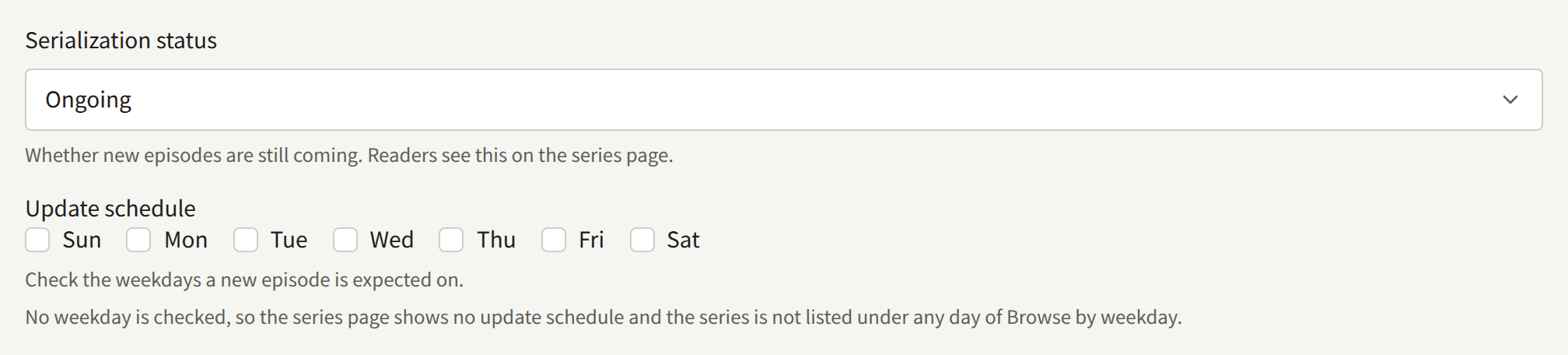
Serialization status is Ongoing, Completed, or On hiatus. Readers see it on the series page and can filter the series list by it. It changes nothing else: a Completed series can still be given episodes.
Update schedule marks the weekdays a new episode is expected on. The series page then reads "Updates on" followed by those days, and the series is listed under each of them in Browse by weekday on the site's top page. With no day checked, the series page says nothing about a schedule, and the series is under no day. Nothing publishes an episode on those days: that is still each episode's own Publication date and time.
Age rating
Age rating is All ages, R15, or R18. A series rated R15 or R18 carries the rating on the site, and its pages ask the reader to confirm their age before they open. Until a reader has confirmed it, rated series are also left out of the top page and of search results.

Whether confirming is enough, or the reader must also be signed in with a date of birth that proves their age, is decided for the whole tenant by Ratings that need a proven age, as Settings describes. A series cannot set this for itself.
Comments
Comments decides how readers' comments on the series' episodes are published: Do not accept comments, Publish straight away, or Publish after approval. It starts on Follow the tenant setting, which follows How comments are published under Settings, including after that changes, as Settings describes. Approving and moderating the comments is covered in Comments.

A choice made here applies to the series whatever the tenant setting is, so a series set to Publish straight away takes comments even while the tenant does not accept them.
Reading direction and spreads
Reading direction is the way the series' pages are turned: Right to left, the way Japanese manga reads and the default, or Left to right. It sets the direction of a page turn, the order of the two pages in a spread, the progress bar, and which side the previous and next episode are on.
Spreads start at page decides where pages begin to be shown in pairs, on a screen wide enough for two. Pages before it are shown alone. 2, the default, keeps the first page, usually the cover, on its own; 1 pairs from the first page. An episode with fewer pages than this is shown one page at a time.

An episode can set its own of either, as Page layout describes. One that does not follows the series, including after it changes.
Reading period
Reading period, in hours, is where the Reading period of each new episode in the series starts. A purchase keeps an episode open for the episode's own period, not the series': an episode can be given a different one when it is created or changed later, and changing the series' period later leaves the episodes already created as they are. A new series starts at 0, which keeps a purchase open with no end. Selling episodes describes how the period is used.

Rental period
Rental period, in hours, is where the Rental period of each new episode in the series starts. It rents no episode by itself: an episode is rented only once it is given a Rental price, and the period is then how long a rental keeps it open. As with Reading period, an episode keeps the value it was created with when the series' changes. 0, where a new series starts, sets none, and a new episode's Rental period then starts empty. Selling episodes describes the rental.
Bundle discount
Bundle discount, in whole percent, is what a reader saves by buying the rest of the series in one checkout: every paid episode of it they do not own yet, for the sum of their prices less this percentage. 0, where a new series starts, takes nothing off, and 99 is the most. A change applies from the next checkout, and reaches nothing a reader already bought. Selling episodes describes the sale.
Titles in other languages
A series has a title and a synopsis in each language the site offers, which a Tenant admin chooses under Settings. Above the form on the Basic information tab, Languages has a tab for each of them, and the form below edits the title and synopsis of the one selected. The note under Title names that language. A language the series has no title in yet is marked (not added): its tab opens the form with Title and Synopsis empty, and choosing Update series there adds them. Until it has one, readers in that language, on the site and in the app, see the series in another language, with a note saying so, and search engines are not told the series has a page in that language.

Every other field on the form belongs to the series rather than to one language, so changing it on any language's tab changes it for all of them. Delete this translation, beside the tabs, removes the selected language's title and synopsis, but not the last ones a series has.
The Series list, and the console's other screens that name a series, show its title in the site's default language. A series that has none in it is named in the language it was first written in.
The cover image
The Cover image tab of a series replaces or removes the image chosen when the series was created. Under Cover image, select a new image and choose Update cover image, or choose Delete the current cover image to leave the series without one. A new image must be a JPEG, PNG, or WebP image of at most 10 MB and at least 2400 × 3200 pixels.
The site does not show the image as uploaded. Saving it cuts four images of fixed shapes out of it, which Aspect ratio images below shows. Each slot is headed by the shape's name, with a line under it saying where that shape is used:
| Slot | At least | Where it is used |
|---|---|---|
| Portrait (3:4) | 1200 × 1600 | The cover on shelves on the site and in the app, and on the series' page on the site |
| Square (1:1) | 1200 × 1200 | The small picture beside the series and its episodes in the site's lists, and one of the images the site offers search engines |
| Landscape (16:9) | 1600 × 900 | Wide banners on the site and in the app, and the small picture beside each episode on the series' page and at the end of an episode on the site |
| Link preview (1200:630) | 1200 × 630 | The preview shown when a link to the series or one of its episodes is shared |
Each shape is cropped from the centre of the image. To give one shape a different crop or a picture of its own, click its image under Aspect ratio images and select a JPEG, PNG, or WebP image at least as large as the slot asks, which may be the same image as before. Adjust the frame then sets which part of it the shape shows, and Replace saves it, leaving the other three as they are. A shape can be replaced only once the series has a cover image, so upload one under Cover image first. Uploading a new cover image there replaces all four.

Labels and genres have the same tab, with the same sizes. Where each shape is used differs for them, and the line under each slot says where for the record being edited: a label's square image is its tile in the app and the small picture beside it in the site's lists, and its portrait image is not shown anywhere yet, for example.
Free if you wait
Free if you wait, below the series form on the Basic information tab, lets signed-in readers open the series' paid episodes free, one at a time, with a ticket that comes back after a wait:
- Offer free tickets on this series turns it on. Turning it off keeps the numbers below for the next time, and an episode a reader already opened with a ticket stays open until its time is up.
- Hours until the next ticket: how long after using a ticket a reader gets the next one, from 1 to 8760. It starts at
23. A change applies from each reader's next use. - Hours an episode stays open: how long an episode opened with a ticket stays readable, from 1 to 8760. It starts at
72. - Newest episodes a ticket cannot open: how many of the latest published episodes, counted back from the last one in the series' order, are kept for buyers.
0lets a ticket open any paid episode.
Choose Save free-if-you-wait settings to save. A reader holds one ticket per series, and tickets do not pile up while unused. A ticket cannot open an episode that is already free to everyone, one the reader can already open, or one their age does not allow. The series page tells readers how the tickets work, and marks the episodes a ticket cannot open with No free ticket.

Selling episodes describes how tickets sit beside prices and free reading periods.
Volumes
A volume is a run of the series' episodes sold together, in one checkout, at a price of its own. Buying a volume opens every episode it holds, for good: a volume is never rented and has no reading period. An episode is in one volume at most, and stays on sale on its own beside it.
The Volumes tab of a series lists its volumes in their order, each with its cover, its price, how many episodes it holds, and whether it is On sale. Drag a volume by its handle to change the order, which is saved as soon as it is dropped. An Auditor sees the list without the handles, and opens each volume with View.

Creating a volume
Under Create volume, enter a Title, up to 255 characters, and a Price in the tenant's currency, which has to be more than 0. Choosing Create volume opens the new volume. It holds no episodes and is not on sale yet. A series holds at most 100 volumes.
The volume's screen has four parts:
- Details changes the title and the price together, with Update volume. A new price applies to purchases made after it is saved.
- Episodes is the list of what the volume holds, as described below.
- Cover image takes a JPEG, PNG, or WebP image of at most 10 MB and at least 2400 × 3200 pixels, cut into the same four shapes as the series' cover image. A volume without one is shown with the series' cover image.
- Sale puts the volume on sale, or takes it off.
Choosing the episodes
Under Episodes, search the series' episodes in Add an episode and choose Add to put one at the end of the list. Drag an episode by its handle to change its place in the volume, and take one out with the button at the end of its row. Nothing is saved until Save episodes. Drafts and scheduled episodes can be added as well as published ones.
An episode another volume holds is not offered: take it out of that volume first.
Once a volume has been on sale, the episodes it held cannot be taken out of it any more, even after it is taken off sale. A reader who started a checkout while it was on sale can still complete it, and the purchase opens what the volume holds. Episodes can still be added and reordered.

Putting a volume on sale
Under Sale, Put on sale offers the volume to readers, and Take off sale stops offering it. A volume holding no episodes cannot be put on sale. Taking a volume off sale takes back nothing a reader already bought.
A volume is sold only where every one of its episodes can be bought, since buying it buys each of them: if one of its episodes is sold on the site alone under Sold on, so is the volume. Selling episodes describes where episodes are sold.

The site and the app do not offer volumes to readers yet, and royalty statements do not yet credit the sale of a volume to the Authors of its episodes.