Publishing works
게시 업데이트
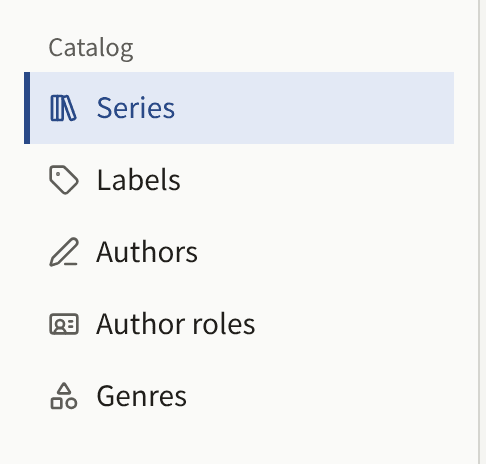
Everything a reader can open on the site is an episode of a series, and a series is filed under a label and credits its Authors. The sidebar's Catalog group holds the five screens these are made on:
| Screen | What it holds |
|---|---|
| Series | The works, with their episodes |
| Labels | The imprints a series is published under |
| Authors | The people credited on series and episodes |
| Author roles | What an Author is credited as, such as Original Author or Artist |
| Genres | The categories readers browse the catalog by |
A Tenant admin and an Editor can create and change everything on these screens, except that only a Tenant admin sees and changes the Reader accounts linked to an Author. An Auditor can open every one of them, with their forms read-only, and does not see the buttons that create anything. Nothing in the catalog can be deleted except an episode's pages, and Author roles and genres that nothing uses, so a series or an episode that should no longer be read is taken off the site rather than removed.
From an empty catalog to a first episode
The order below is the one the console needs: a series cannot be saved without a label, an Author is credited from a list of Authors that already exist, and an episode belongs to a series. The series stays hidden while its first episode is prepared, and both reach readers in the last step.
- Create a label. Under Labels, choose Create label, enter a Label name, and choose Create label. A publisher with a single imprint creates this one label and files every later series under it too, rather than a label per series. See Labels.
- Create the Authors. Under Authors, choose Create author for each person to be credited, with their Name and, if you have them, a Profile and an Author icon image. See Authors and Author roles.
- Check the Author roles. A new tenant has four, Original Author, Artist, Writer, and Supervisor, in English. Rename them under Author roles if the site is in another language, since readers see them beside each name.
- Create the genres the site will be browsed by under Genres, if it has any. A series can be saved without one and given its genres later. See Genres.
- Create the series. Under Series, choose Create series. Fill in its Title, Synopsis, and Label, credit its Authors under Authors, choose a Cover image, and leave Publication date and time empty, so the series stays hidden while you work. Choose Create series. See Series.
- Create the first episode. On the Series list, choose Episodes on the series' row, then Create. Enter its Title and Price, and set Publication date and time to the current time, which publishes it as soon as it is created. It is not readable yet, since its series is still hidden. Choose Create episode. See Episodes.
- Add its pages. On the episode's edit screen, under Add comic pages, add the page images, then check their order under Registered page images.
- Publish the series. Back on the series, set Publication date and time to the current time and choose Update series. The series and its first episode are now on the site.
- Open it as a reader. Sign out, or use a private window, and find the series on the site's top page, under Labels, or by searching for its title. Open the episode and turn its pages. A paid episode shows its price instead, and is opened as Selling episodes describes.
The episodes that follow are added to a series that is already public, so they are prepared as drafts and given their time once their pages are in place, as Publishing an episode describes.
In this section
- Series: creating a series, where and when it is shown, its age rating, reading direction, comments, cover image, and Free if you wait.
- Episodes: creating an episode, adding its pages, its price and reading period, its page layout, credits, where it is shown and sold, free reading periods, and scheduled publication.
- Labels: the imprints series are published under, and the label pages readers see.
- Authors and Author roles: the people credited on a work, what they are credited as, how the credits read on the site, and linking an Author to their reader account.
- Genres: the categories readers browse by, and their order.