Readers, comments, and contact messages
发布于 更新于
The Readers group of the console is where the staff deal with the people who read the site: their accounts, the comments they leave on episodes, the messages they send through the contact form, and the access tickets that open a paid episode to one of them without payment. What is done here reaches a reader directly, sometimes without a way back, so each section below says what an action does before saying how to take it.
Not every member of the staff sees every screen:
| Screen | Tenant admin | Editor | Auditor |
|---|---|---|---|
| Readers | Everything | Not shown | Not shown |
| Comments | Everything | Everything | Reads, without acting |
| Contact messages | Everything | Not shown | Not shown |
| Access tickets | Everything | Not shown | Not shown |
A screen that is not shown is missing from the menu, and its address answers as a page that does not exist.
Readers
Readers lists every account on the tenant's site, newest sign-up first, twenty to a page. That includes the staff, since a console account is also an account on the site: Role shows the highest role a member of the staff holds, and is empty for a reader.
To find someone, type part of their name or email address into Name or email and choose Apply. The search matches anywhere in either one and ignores case, so tanaka finds Tanaka Hanako and h.tanaka@example.com. Status narrows the list to one status:
| Status | What it means |
|---|---|
| Active | The account can sign in |
| Inactive | The reader signed up and has not confirmed their email address yet. They cannot sign in until they do |
| Suspended | A Tenant admin suspended the account. It cannot sign in until the suspension is lifted |
A reader's name in the list opens their page. So does the commenter's name on Comments, for a Tenant admin, and the sender of a contact message who was signed in when they wrote.

The reader page
Account shows the reader's name, their Public ID with a button to copy it, their email address, their status, when they signed up, whether and when they confirmed their email address, and their Birth date. Comments lists everything they have written, newest first, including the comments they deleted themselves until those are purged, with the same actions as on Comments.

The public ID is what Access tickets filters by, so copy it from here when you look for a reader's tickets.
Correcting a date of birth
A reader cannot change their date of birth once it is saved, so a reader who entered it wrongly has to ask the site, and the age checks set under Age verification follow whatever is saved. To correct it, choose Change beside Birth date, enter the date, and choose Save. Leave the date empty to clear it, after which the reader is asked for it again on an age-gated series. The new date applies from the reader's next read.
Suspending a reader
Suspend signs the reader out on every device and refuses their sign-in, with a password or with Apple or Google, until the suspension is lifted. Nothing else about the account changes: their published comments stay on the site, and their purchases and access tickets stay theirs, unusable only while they cannot sign in.
Lift suspension, on the same page, returns the account to Active, or to Inactive if its email address was never confirmed. The reader signs in again; the sessions the suspension ended stay ended. To find a suspended reader, set Status to Suspended.
Deleting a reader
Delete deletes the account exactly as if the reader had closed it themselves, and cannot be undone:
| What the reader had | What happens to it |
|---|---|
| Comments, and the reports they filed | Deleted |
| Purchases | Kept without the buyer, so sales and royalties do not change |
| Access tickets, follows, reading history, ratings, notifications, and linked Apple and Google sign-ins | Deleted |
| Contact messages | Kept, shown as from Guest |
| Roles on the staff | Removed |
Suspend rather than delete when you may want to undo it.
You cannot suspend or delete the account you are signed in with, nor the tenant's last active Tenant admin: make someone else a Tenant admin first. Suspending, lifting a suspension, deleting, and changing or clearing a date of birth are recorded in the audit log as Reader suspended, Reader suspension lifted, Reader deleted, Reader birth date changed, and Reader birth date cleared.
Comments
Readers can comment on an episode only when comments are turned on, under Settings › Reader comments for the whole tenant, or on a series' form for that series. Reader comments explains the three choices, Do not accept comments, Publish straight away, and Publish after approval, and the number of reports that removes a comment on its own.
Only signed-in readers comment, up to 1000 characters each. A comment belongs to an episode; there are no replies or threads, so acting on one comment touches no other.
Comments shows two lists: Reported comments first, then every comment on the tenant's episodes, newest first. An Auditor sees both without the actions.
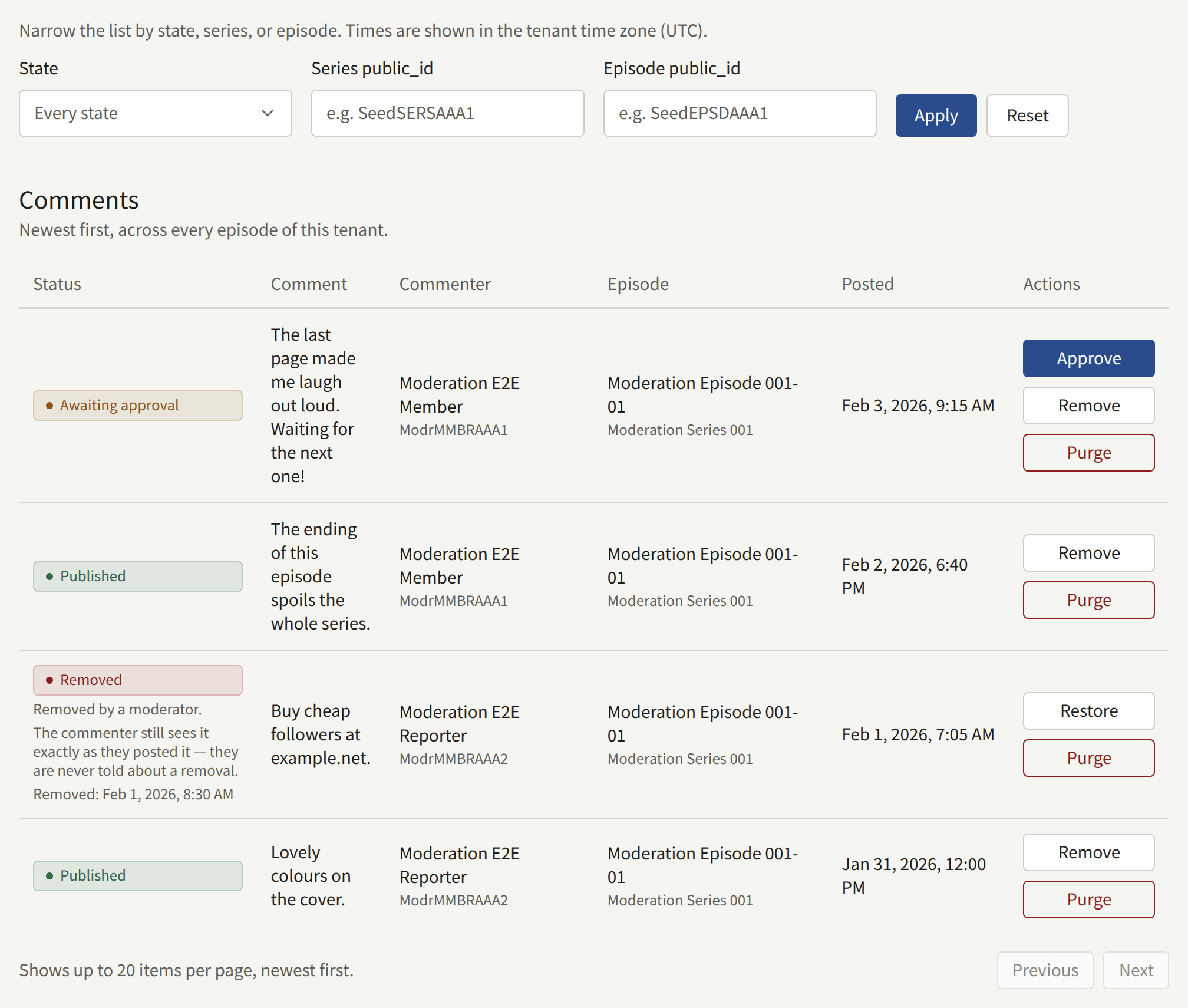
What a comment's state means
| State | Who sees the comment |
|---|---|
| Awaiting approval | Only its commenter, marked Awaiting approval |
| Published | Everyone |
| Removed | Only its commenter, who sees it as they posted it |
| Deleted by the commenter | Nobody on the site, its commenter included. Staff see it here until it is purged |
What each action does
| Action | Offered on | What it does |
|---|---|---|
| Approve | Awaiting approval | Publishes the comment, and notifies its commenter that their comment is now public |
| Remove | Awaiting approval, Published | Takes the comment off the site for everyone but its commenter. A Reason (optional) goes into the audit log |
| Restore | Removed | Puts the comment back as it was: published again if it had been published, otherwise back to Awaiting approval. Every report still waiting on it is dismissed |
| Purge | Any state | Deletes the comment and its reports for good. A Reason is required, since the audit log entry is all that remains of the comment |
A removed comment's commenter is notified on the site and in the app, with "Your comment was removed" and whether a moderator or readers' reports removed it. The console's confirmation says they are never told, which is wrong (#3815). Remove a comment knowing that its commenter will find out.
If another moderator acted on the same comment after you loaded the list, your action is refused with "Another moderator already handled this comment. Reload the list to see its current state."
Working the approval queue
While any comment awaits approval, Comments in the menu carries the number of them. Every member of the staff also gets a notification in the console, "Comments are waiting for approval", at most once an hour for each episode; it opens the list filtered to that episode's comments awaiting approval.
- Open Comments, set State to Awaiting approval, and choose Apply.
- Read each comment, and choose Approve to publish it or Remove to keep it off the site.
- Work through the pages until the list is empty.
Nobody but the commenter sees a comment until it is approved, so a queue left unworked is a comment section that stays empty. A comment removed from the queue keeps showing to its commenter as Awaiting approval.
Reported comments
A signed-in reader can report a published comment that is not their own, choosing Spam or advertising, Abuse or harassment, Spoilers, or Something else, with an optional note. Each reader reports a comment once; reporting it again changes nothing. The commenter is not told.
When the reports waiting on a comment reach Reports that remove a comment, it is removed on its own, without waiting for staff. It then reads "Removed automatically once the reports passed the threshold.", and the audit log records Comment removed automatically after reports with Automatic as the actor. Every member of the staff gets a console notification, "Comments were reported", at most once an hour for each episode.
Reported comments lists one row for each report, newest first, with its reason, note, reporter, the comment, and its commenter. A report is Waiting until it is decided:
- Uphold records that the report was right. It leaves the comment where it is: to take a published comment down, choose Remove as well.
- Dismiss records that the report was wrong. It does not put back a comment that was removed automatically: choose Restore for that.

To work the queue, set it to Waiting, then for each comment decide whether it stays. If it goes, Remove it and Uphold its reports. If it stays, Restore it if it was removed, which dismisses all of its waiting reports at once, or Dismiss each report if it was not. Deciding a report lowers the count toward the automatic removal, so dismissed reports do not carry a comment over the threshold later.
Withdrawn comments
A reader can delete their own comment at any time. It leaves the site at once, for everyone including them, and cannot be restored by staff. Comments keeps showing it as Deleted by the commenter, with when they deleted it and when it will be purged, so that staff can still read a comment someone reported or complained about after its commenter took it down. Reports on it stay in the queue and can still be decided.
Withdrawn comments are purged, with their reports, once they have been withdrawn for the period set under Settings › Limits and retention › Retention periods › Withdrawn comments. publira worker purges them every hour; the row says "Purged for good in" so many days, and the date, counting from the period as it is set now. Choose Purge to delete one sooner. A removed comment is never purged on its own: it stays until a moderator purges it.
Finding comments
The comment list narrows by State, Series public_id, and Episode public_id. A public ID is the last part of the console's address for the series or the episode, as in /series/<series public ID>/episodes/<episode public ID>, and the Episode of each comment links there. An ID that matches nothing shows an empty list.
A comment from an account linked to an Author credited on the episode carries an Author badge, on the site and here. It changes nothing about how the comment is moderated.
Approving, removing, restoring, and purging comments, and upholding and dismissing reports, are recorded in the audit log, with the reason you gave.
Contact messages
Readers write to the site from Contact, linked at the foot of every page of the site and in the app, signed in or not. They give the email address an answer should go to, an optional subject of up to 200 characters, and a message of up to 4000. A signed-in reader's address is filled in for them and can be changed.
A new message is mailed to every active Tenant admin at their account's address, with the reader's address, the subject, and the whole message. Editors and Auditors are not mailed, since they cannot open Contact messages, and neither is a suspended account. A tenant with no active Tenant admin sends the mail to nobody; the message still waits in Contact messages. The console itself shows no count or notification for a new message, so check Contact messages or keep an eye on that mail.
Contact messages lists the messages newest first, twenty to a page, with Subject, From, Reply to, Status, Assignee, and Received. From names the reader's account when they were signed in, and reads Guest otherwise. Status follows from the message, and is never set by hand:
| Status | When |
|---|---|
| Unhandled | Not handled, and nobody is assigned |
| In progress | Not handled, and a Tenant admin is assigned |
| Handled | Marked handled, or answered |

Answering a message
- Open the message from Contact messages.
- Under Assignment, choose Assign to me, or pick a Tenant admin and choose Save assignee, so the others know it is being dealt with. Only Tenant admins can be assigned.
- Write the answer under Answer, up to 4000 characters, and choose Send answer.

The answer is saved under Answers and replies, the message becomes Handled, and publira worker mails the answer to the message's Reply to address:
- through the mail server set up under Email, from its address, or through the platform's until the tenant has one of its own;
- with the subject "Re:" and the reader's subject, or "Re: Your message to" the site when they gave none;
- with the reader's message quoted under the answer;
- in the tenant's default language, whatever language the reader wrote in.
The console does not show whether the mail was delivered. If the mail settings are wrong, the answer stays saved and the message Handled while the mail is never sent, so when the tenant sends through its own server, check it with Test the connection under Outgoing email before answering readers. Answers to one address are limited in number per hour and per day, like all mail the console sends.
When the reader writes back
Where a reader's reply goes depends on whether the Inbound email section of Integrations › Email is Ready, which Readers' replies to contact messages walks through setting up:
- Until it is Ready, the answer's reply address is your own account's email address. The reader's reply arrives in your own mailbox. It is not recorded in the console, and the message stays Handled: answer from your mail, or from the console again.
- Once it is Ready, the reply address is one of the site's own, made for that message. The reader's reply is recorded under Answers and replies as "Reply from" their address, the message is reopened, and the Tenant admins are mailed as for a new message.
The hint under Answer says which of the two applies to the tenant.
Keeping track
- Staff note is one note the Tenant admins share about the message, up to 4000 characters. Readers never see it. Saving replaces it for everyone, and saving it empty clears it.
- Mark handled marks a message dealt with without answering it, such as spam. Reopen returns it to In progress or Unhandled. Neither changes the assignee.
Messages are never deleted: there is no retention period for them. A message from a reader who later deletes their account is kept, and shows as from Guest. Marking handled, reopening, assigning, editing the note, and answering are recorded in the audit log; the text of an answer is not.
Access tickets
An access ticket opens one episode to one reader without payment, on the site and in the app, until it expires or is revoked. Use one where the reader should read without buying: a reviewer or a member of the press, a prize, or a reader whose purchase went wrong and who should not have to wait for a refund and a new purchase.
A ticket is not a sale. It earns no Author a royalty, and the episode does not appear under the reader's Purchases. It does not lift age checks: a reader too young for the series stays out with a ticket. It opens only a published episode, and does nothing for a free one. The reader is not told that they have one, so tell them yourself.
Issuing a ticket
- Open Access tickets and choose Issue a ticket.
- Under Reader, type part of the reader's name or email address and pick them. Only Active readers are offered.
- Pick the Series, then the Episode.
- Optionally, set Expiry, in the tenant's time zone. Left empty, the ticket never expires.
- Optionally, write a Note, up to 1000 characters, such as why the ticket was issued.
- Choose Issue the ticket.

A reader and an episode have one ticket from the staff at a time:
- If they already have an active one, nothing new is issued, and the existing ticket keeps its expiry and note. The console says so and names that ticket. To change a ticket's expiry or note, revoke it from the list and issue a new one.
- If they have an expired one, the console asks you to revoke it from the list first.
Revoking a ticket
Revoke, on an active ticket in the list, closes the episode to the reader at once. It cannot be undone: issue a new ticket to give them access again. A revoked ticket stays in the list as Revoked, with when it was revoked.
Reading the list
The list holds the tickets the staff issued, and only those. The tickets readers take themselves through Free if you wait are not in it and cannot be revoked here: each is a free read the reader was entitled to by the series' rule, not something the staff gave out, and a staff ticket for the same reader and episode is issued beside it rather than replacing it.
The list shows each ticket's Status, User, Episode, Note, Expires, and Created, newest first, twenty to a page. Status is Active, Expired, or Revoked, and the filter's Active only leaves out both the expired and the revoked. User public_id and Episode public_id take a whole public ID, copied from the reader's page or the episode's address in the console; part of an ID or a name finds nothing.

Issuing and revoking are recorded in the audit log as Access ticket issued and Access ticket revoked.
How the community limits apply
Community limits, under Settings › Limits and retention, caps how often one reader may act. A Tenant admin can make each limit stricter than the platform's, never looser, as Limits and retention describes:
| Limit | What a reader runs into |
|---|---|
| Comment posting, per minute and per day | Posting more comments |
| Comment reporting, per minute and per day | Reporting more comments |
| Contact messages per account, per hour and per day | A signed-in reader sending more messages |
| Contact messages per client, per hour and per day | Anyone sending more messages from the same network address, signed in or not |
| Duplicate comment window | Posting the same text on the same episode again within that many minutes |
A reader over a limit is told "Too many requests in a short time. Please wait a moment and try again." and can act again once the period has passed. A repeated comment gets no message of its own: the site says "Cannot save because this data already exists. Change the values and try again.", and the app that the comment could not be posted (#3819).
Tighten a limit when a reader or a script is flooding the comments or the contact form; suspend the account under Readers when it is one reader. The limits count what readers do on the site and in the app, staff included when they comment there; what a moderator does in the console is not counted. What each limit counts is explained from the operator's side in Platform defaults and policies.