Setting up the tenant
发布于 更新于
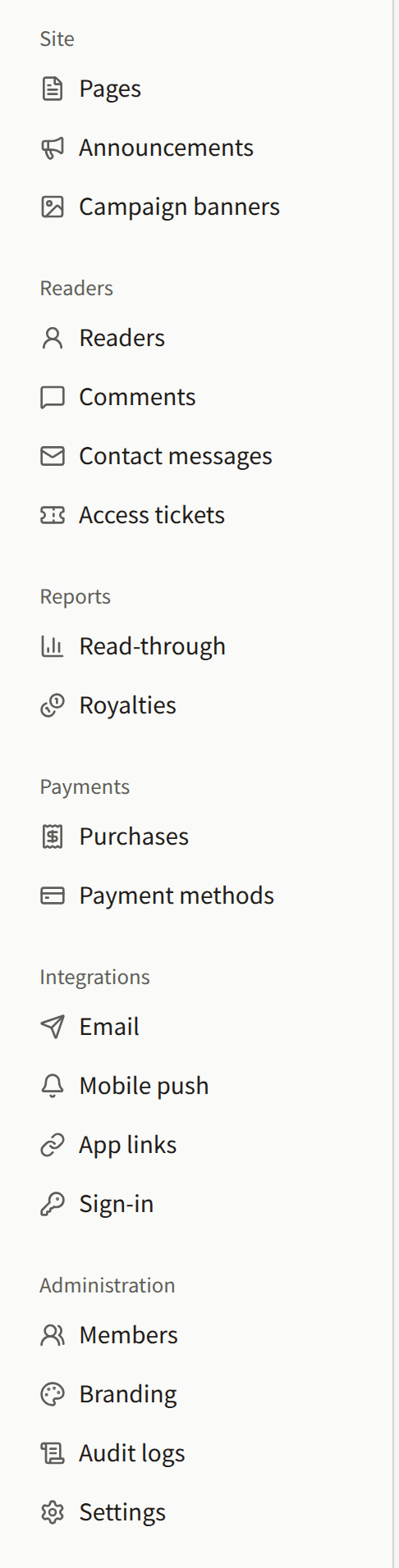
A new tenant starts as a bare site. It has the operator's choice of language and time zone, Publira's default colors, no logo, no pages, no comments, and only the administrators the operator invited. These pages take a Tenant admin through making it the publisher's own. Most of the screens involved are in the sidebar's Administration group. The site's pages, announcements, and campaign banners are under Site, and the tenant's own mail server is under Integrations › Email.
The site is served on its domain from the moment the operator creates the tenant, and the console has no switch that hides it while you work. Readers who find the domain early see whatever is saved so far, so finish the steps below before you announce the site.
A first session, in order
- Turn on two-step verification for yourself, from Account settings in the account menu, if the console has not already asked you to. See Your account.
- Check the language and time zone under Settings. Every date in the console and on the site is shown in that time zone. See Settings.
- Give the site its look under Branding: the logo, the browser icon, the colors, and the typefaces. See Branding.
- Write and publish the terms of service and the privacy policy under Pages, then choose them under Settings › Terms and privacy policy, so readers agree to them when they sign up. See Pages.
- Fill in the rest of the general settings: the copy in the site's footer and on its sign-in screens, whether readers may comment, which age ratings need a proven age, and which email addresses readers may not sign up with. See Settings.
- Decide whose mail server sends the tenant's mail. The platform's is used until you set your own under Integrations › Email. See Email.
- Invite the rest of the staff under Members. See Members.
The catalog, payments, sign-in with Apple and Google, and the app are set up on their own pages: Publishing works, Selling episodes and Sign-in with Apple and Google in this section, and Mobile app.
Who can change what
Only a Tenant admin changes the settings these pages describe. Editors and Auditors see some of the screens without being able to save them, and do not see the others at all:
| Screen | Tenant admin | Editor | Auditor |
|---|---|---|---|
| Pages, Announcements, Campaign banners | Change | Change | View |
| Branding, Settings | Change | View | View |
| Members, Audit logs, Integrations › Email | Change | Not shown | Not shown |
| Account settings | Their own account | Their own account | Their own account |
In this section
- Settings: the site's copy, time zone, default language, reader comments, age verification, the terms and privacy policy, refused email addresses, the community limits and retention periods the tenant can tighten, and what readers can show as their icon.
- Branding: the logo, the icon, the theme colors, the typefaces, and the preview.
- Pages: the site's own pages, their versions and translations, and the terms of service and privacy policy readers agree to.
- Announcements: announcing something to every reader, and the banner shown above every page of the site.
- Campaign banners: scheduling the image banners at the top of the site's top page and the app's catalog, and their order.
- Members: inviting staff, changing their roles, and removing them.
- Email: sending the tenant's mail through its own SMTP server, and receiving readers' replies to contact messages in the console.
- Audit log: what the console records about what its staff did.
- Your account: changing your email address, and two-step verification.