Campaign banners
Published Updated
Campaign banners, under Site, puts a campaign in front of readers who have not gone looking for it: a discount on a series, a new serialization, a fair on another site. A banner is an image that links somewhere, shown for a window you set. The site shows the banners on air at the top of its top page, and the app at the top of its catalog screen.
A banner is not an announcement. It reaches no one's notifications, cannot be closed by a reader, and is shown only on those two screens. To tell every reader something, or to keep a line of text above every page, use Announcements.
A Tenant admin and an Editor can create, change, reorder, and delete banners. An Auditor sees the list, and opens a banner with View, without being able to change it.
Creating a banner
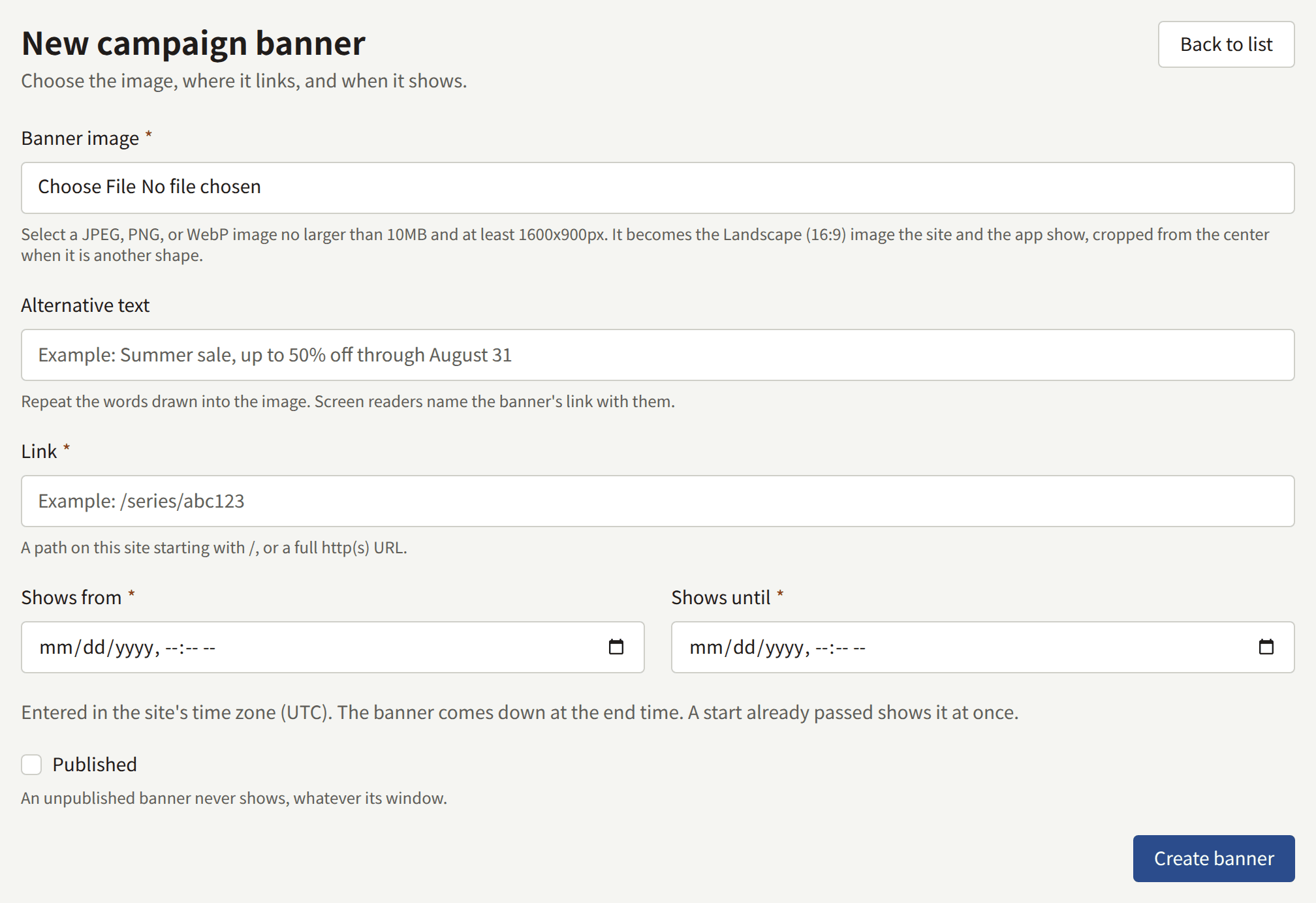
Choose New banner and fill in:
- Banner image: a JPEG, PNG, or WebP image of at most 10 MB and at least 1600 × 900 pixels. See The image.
- Alternative text: the words drawn into the image, up to 255 characters, such as
Summer sale, up to 50% off through August 31. A screen reader cannot read lettering in a picture, so it names the banner's link with these words instead. The field is optional, but a banner left without it can only be told apart from the others by where it links. - Link: where the banner takes a reader who opens it, up to 2048 characters. Start it with
/for a page of this site, such as/series/SERIES001or/labels/LABEL001, or withhttps://orhttp://for another site. - Shows from and Shows until: the window the banner is on air, entered in the tenant's time zone, which the note under the two fields names. See The window.
- Published: whether the banner shows at all. A new banner starts unpublished. See Publishing.
Choose Create banner. The banner opens on its own screen, with a Details tab that changes the alternative text, the link, the window, and Published, and an Image tab that changes the image.
The image
The band on the site and in the app is drawn from one shape, Landscape (16:9), uncropped, and the image you upload becomes that shape. Artwork made for the band, such as a 1920 × 1080 image, is kept whole; an image of any other shape is cropped from its centre. The Image tab shows the result under Aspect ratio images, in the Landscape (16:9) slot. The Portrait (3:4), Square (1:1), and Link preview (1200:630) slots beside it start empty and are not shown anywhere.
To frame the band differently, choose Adjust the frame on the Landscape (16:9) slot, or upload other artwork for it with Replace, which takes an image of at least 1600 × 900 pixels. Uploading a new image under Cover image and choosing Update image replaces it too, and empties any other slot that was filled. A banner always keeps an image, so there is no removing it. The cover image of a series describes the slots in full.
On a phone the band is as wide as the screen, so lettering in the image has to be readable at that size. A new image with different lettering needs its Alternative text rewritten on the Details tab to match.
The window
Shows from and Shows until are read in the tenant's time zone, chosen under Settings, and the list shows every window in it as well. The banner is on air from the first moment to the second, and has come down at the second itself, so one banner can end at the moment the next begins.
- The end has to come after the start.
- A new banner's end has to be ahead. A start already past puts it on air as soon as it is published.
- When you edit a banner, the end has to be ahead too, unless you leave the window as it was. An ended banner can therefore still be unpublished or given another link without being rescheduled.
The site and the app compare the window with the current time on every read, so a banner turns over at the same moment for every reader, wherever they are. The site keeps what it has drawn until the worker's next pass drops it, normally within a minute of the time you set. If a banner is still missing after its window opened, or still up after it closed, the operator of the install can check the job described in Scheduled jobs.
Publishing
Published decides whether the banner shows at all. An unpublished banner never shows, whatever its window, so a banner can be prepared and left unpublished until it is ready. Clearing Published on the Details tab, and choosing Update banner, takes a banner off the air at once.
The list shows where each banner stands now:
| Status | Meaning |
|---|---|
| Showing | Published, and its window holds the present moment |
| Scheduled | Published, and its window has not opened yet |
| Ended | Published, and its window has closed |
| Unpublished | Not published, whatever its window |
Each row is headed by the banner's alternative text, with its link under it, or by its link alone when it has none.

Ordering
The site and the app show the banners on air in the order of the list. A new banner goes to the end. To move one, drag it by its handle, or focus the handle and use the arrow keys. The order is saved as soon as a banner is dropped.
If someone else reorders the list at the same time, your move is refused with "The banner order changed somewhere else. Reload the page and try again."
Deleting a banner, and the limit of 50
Delete, on the banner's row, asks for confirmation and then removes the banner and its image. The site stops showing it at once.
A tenant holds at most 50 banners, ended ones included. A banner created past that is refused with "This site already holds as many campaign banners as it may. Delete one that has ended, then try again." An ended banner shows nowhere, so deleting it loses nothing a reader sees.
What readers see
- On the site, the banners on air are at the top of the top page, above the work the page opens with. One banner is a single band. Two or more are a strip a reader swipes or scrolls through, with Previous campaign and Next campaign buttons and a counter such as
1 / 3under it; the strip runs on from the last banner to the first, and nothing moves it on by itself. On a wide screen the neighbouring banners show at the edges of the strip. - In the app, the same banners are at the top of the catalog screen, under the site banner if there is one and above the shelves. Two or more are pages the reader swipes through, with the edge of the next one showing. The app reads them when the catalog screen is first shown, and again when the reader pulls the screen down to refresh it.
- When a reader opens a banner, the site goes to its link, keeping the reader's language for a page of the site. The app opens its own screen for a page of the site it has one for, such as a series or a label, its page screen for one of the tenant's published pages, and the browser for anything else.
A tenant with no banner on air shows neither the band nor any space for it, on the site or in the app.